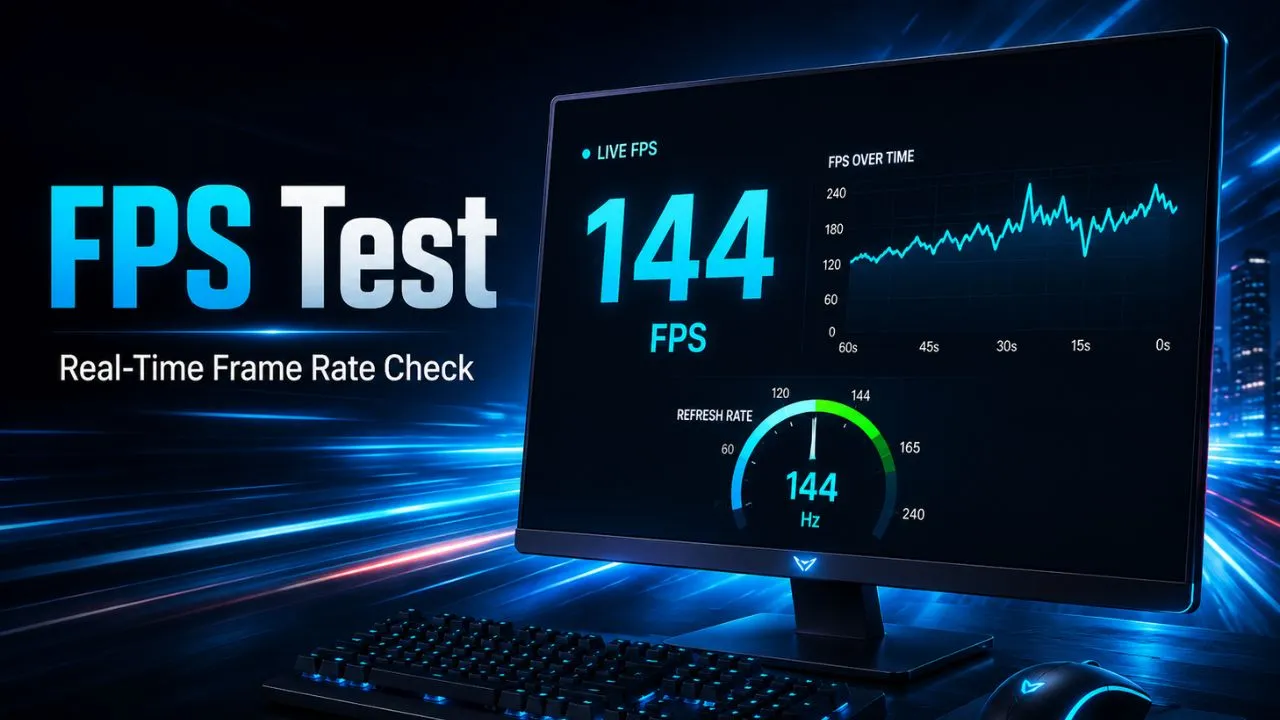
FPS Test
Measure your browser’s frames per second, frame time and estimated screen refresh rate in real time.
The tool counts the frames rendered by your browser every second. Results can be affected by power-saving mode, background tabs, browser settings, device temperature and other open applications. Keep this page visible while running the test.
Want to know how smoothly your screen and browser are rendering motion? Use the FPS test above to measure your current frame rate, average FPS, minimum FPS, maximum FPS, frame time and estimated display refresh rate in real time.
There is nothing to download, install or configure. Select a test duration, choose an animation load and press Start Test. The tool will immediately begin analyzing how frequently your browser can render new frames.
This online FPS checker is useful for testing:
- Desktop computers and laptops
- Gaming monitors
- Smartphones and tablets
- Windows, macOS, Linux, Android and iOS devices
- Chrome, Edge, Firefox, Safari and other modern browsers
- Standard and high-refresh-rate displays
- Browser rendering performance
- Motion smoothness and frame stability
For the most reliable result, keep this page visible, close unnecessary applications and allow the test to run for at least 30 seconds.
What Is an FPS Test?
An FPS test measures how many individual images, known as frames, your device can display or render each second.
FPS stands for frames per second. A result of 60 FPS means the browser produced approximately 60 frames during one second. A result of 144 FPS means it produced approximately 144 frames during the same amount of time.
Higher FPS normally creates smoother-looking motion because the time between consecutive frames is shorter. Low or unstable FPS can make animations appear choppy, delayed or inconsistent.
Our online frame rate test measures browser-rendered frames through an animated visual scene. It uses the timing of consecutive animation frames to calculate several performance metrics, including:
- Current FPS
- Average FPS
- Minimum FPS
- Maximum FPS
- Average frame time
- Estimated refresh rate
The test uses the browser’s animation rendering cycle rather than displaying a random or predetermined number. Browser animation callbacks generally follow the active display’s refresh cycle, although the operating system, browser, device performance and power settings can affect the result.
How to Use the Online FPS Test
Running the test takes only a few steps.
1. Close unnecessary programs
Close resource-heavy applications, additional browser tabs, active downloads and background processes. These can use CPU, GPU or memory resources and cause a lower or less stable result.
2. Keep the page visible
Do not switch to another browser tab while the test is running. Browsers often pause or reduce animation activity when a page moves into the background, which would make the measurement inaccurate.
3. Select the test duration
You can run the FPS checker for:
- 10 seconds for a quick measurement
- 30 seconds for a balanced test
- 60 seconds for a more complete result
- Continuous mode for ongoing monitoring
A longer test usually gives you a more useful average because it collects more frames and captures short performance fluctuations.
4. Choose an animation load
The tool includes three visual workloads:
Light: Uses fewer animated elements and is suitable for older computers, entry-level phones and basic browser testing.
Balanced: Offers a practical test for most computers, laptops, tablets and smartphones.
Heavy: Displays more animated elements to place additional pressure on browser rendering.
The animation-load option does not turn the tool into a complete GPU benchmark. It simply allows you to observe how your browser behaves under different visual workloads.
5. Press Start Test
The animation will begin and the FPS statistics will update automatically.
For a clearer test environment, you can also activate the Fullscreen option. Avoid moving the window between monitors while the measurement is running.
6. Review the result
When the test finishes, compare the average FPS, minimum FPS, maximum FPS and frame time. Do not judge performance using only the highest number displayed.
A stable average with a minimum close to the average usually indicates smoother performance than a high maximum accompanied by frequent drops.
Understanding Your FPS Test Results
The tool provides several measurements. Each one describes a different part of your browser’s rendering performance.
Current FPS
Current FPS is the number of frames detected during the most recent measurement period.
This number updates continuously and may change while the test is running. Small variations are normal because browser rendering is affected by background activity, operating-system scheduling, page complexity and device temperature.
For example, a current reading may move between 58 and 60 FPS on a 60 Hz display or between 138 and 144 FPS on a 144 Hz display.
Average FPS
Average FPS represents the average number of frames rendered per second throughout the entire testing session.
This is generally more useful than looking at a single current reading because it provides a broader view of sustained performance.
For example:
- Current FPS: 144
- Average FPS: 141.7
- Minimum FPS: 132
- Maximum FPS: 145
These results suggest relatively stable rendering near the expected refresh rate.
In contrast:
- Current FPS: 144
- Average FPS: 96
- Minimum FPS: 28
- Maximum FPS: 146
This indicates that the browser reached a high frame rate at certain moments but experienced substantial drops during the test.
Minimum FPS
Minimum FPS is the lowest stable frame-rate sample recorded during the session.
A low minimum may indicate a temporary interruption caused by:
- Another application using system resources
- Browser extensions
- CPU or GPU load
- Power-saving features
- Thermal throttling
- Window resizing
- Background synchronization
- Browser interface activity
One isolated drop does not automatically mean that your monitor or computer has a problem. Run the test multiple times and look for a repeated pattern.
Maximum FPS
Maximum FPS is the highest stable frame-rate sample recorded during the test.
This value can help determine whether the browser is reaching the expected limit of the display. However, maximum FPS should not be treated as the most important result because it may represent only a brief peak.
Average FPS and frame stability are usually more helpful when evaluating smoothness.
Average Frame Time
Frame time measures how long the browser takes to produce each frame. It is displayed in milliseconds.
Lower frame time allows more frames to be rendered during one second.
Typical relationships include:
| Frame rate | Approximate frame time |
|---|---|
| 30 FPS | 33.33 ms |
| 60 FPS | 16.67 ms |
| 75 FPS | 13.33 ms |
| 90 FPS | 11.11 ms |
| 120 FPS | 8.33 ms |
| 144 FPS | 6.94 ms |
| 165 FPS | 6.06 ms |
| 240 FPS | 4.17 ms |
| 360 FPS | 2.78 ms |
At 60 Hz, the browser has roughly 16.67 milliseconds to complete the work required for each frame. When processing repeatedly exceeds the available frame budget, frames can be delayed or skipped, causing visible inconsistency.
Estimated Refresh Rate
The estimated refresh rate indicates how many times the active screen appears to update per second.
Refresh rate is expressed in hertz, abbreviated as Hz.
Common display configurations include:
- 60 Hz
- 75 Hz
- 90 Hz
- 120 Hz
- 144 Hz
- 165 Hz
- 240 Hz
- 360 Hz
The value shown by the tool is an estimate based on browser animation intervals. It may not always match the manufacturer’s advertised specification, especially when adaptive refresh rate, browser limitations, power-saving modes or multiple monitors are involved.
FPS vs. Refresh Rate: What Is the Difference?
FPS and refresh rate are related, but they do not mean exactly the same thing.
FPS describes rendered frames. It tells you approximately how many new frames an application or browser produces each second.
Refresh rate describes display updates. It tells you how many times the screen can refresh each second.
A 144 Hz monitor can update its image up to 144 times per second, but that does not guarantee that every application will render at 144 FPS.
Consider these examples:
60 FPS on a 60 Hz monitor
The rendered frame rate and display refresh rate are closely matched. Motion can look smooth when frame delivery remains stable.
60 FPS on a 144 Hz monitor
The monitor can refresh more frequently than the application is producing new frames. The desktop interface may benefit from the higher refresh rate, but the 60 FPS content still contains only 60 new frames per second.
144 FPS on a 60 Hz monitor
The application may produce more frames than the monitor can fully display as separate refreshes. Input responsiveness can sometimes improve, but the display cannot present 144 complete visual updates each second.
144 FPS on a 144 Hz monitor
The rendered frame rate and monitor refresh rate are closely aligned, producing a smoother experience when frame pacing remains consistent.
What Is a Good FPS Result?
A good frame rate depends on the display, device and activity being tested.
| FPS range | General experience | Common use |
|---|---|---|
| Below 20 FPS | Very choppy | Heavy load or performance issue |
| 20–29 FPS | Limited smoothness | Basic animation on slower devices |
| 30–44 FPS | Acceptable | Video, simple content and casual use |
| 45–59 FPS | Fairly smooth | General browsing and animations |
| 60 FPS | Smooth standard | Browsing, video and gaming |
| 75–90 FPS | More fluid | High-refresh phones and monitors |
| 120 FPS | Very smooth | Gaming and fast-motion interfaces |
| 144–165 FPS | Highly responsive | High-refresh gaming displays |
| 240 FPS or higher | Extremely fluid | Competitive setups and specialized displays |
These categories are general references rather than strict rules.
A stable 60 FPS result can look better than an average of 100 FPS that repeatedly drops to 25 FPS. Consistency matters because sudden changes in frame delivery are often more noticeable than a moderately lower but stable frame rate.
Why Is My FPS Test Showing 60 FPS?
A result close to 60 FPS is common and does not necessarily indicate poor performance.
Possible explanations include:
Your display is configured at 60 Hz
Even if a monitor supports 120 Hz, 144 Hz or 240 Hz, the operating system may still be configured to use 60 Hz.
Check the display settings and confirm that the highest supported refresh rate is selected.
The browser follows the screen refresh cycle
Browser animation timing is generally synchronized with the active display. Therefore, a browser-based test frequently reports a value close to the monitor’s current refresh rate rather than an unlimited rendering number.
You are using the wrong monitor
If several displays are connected, the browser window may be positioned on a 60 Hz monitor instead of the high-refresh-rate monitor.
Move the complete browser window to the display you want to test, reload the page and start the test again.
Power-saving mode is enabled
Battery-saving features can limit processor performance, display refresh behavior or browser animation speed.
Connect a laptop to power and temporarily disable energy-saving modes before repeating the test.
The browser is limiting performance
Hardware acceleration may be disabled, a browser extension may be consuming resources or the browser may be operating under a power-efficiency feature.
The device uses an adaptive refresh rate
Some devices dynamically lower and raise the screen refresh rate depending on activity, battery level and displayed content.
The reported FPS may therefore change between tests.
Why Is My FPS Lower Than My Monitor’s Refresh Rate?
A monitor’s maximum refresh rate represents its display capability, not a guaranteed browser performance level.
Your result may be lower because of:
- High CPU usage
- High GPU usage
- Limited integrated graphics
- Browser extensions
- Too many open tabs
- Background applications
- Battery saver
- Thermal throttling
- Outdated graphics drivers
- Software rendering
- High screen resolution
- Multiple connected displays
- Browser zoom or scaling
- A demanding animation-load setting
- Screen recording or live streaming
- Remote desktop software
Start with the balanced test and repeat it after closing unnecessary applications. Then run the light test. If the light test reaches the expected frame rate but the heavy test does not, the difference is probably related to rendering workload.
How to Make the FPS Test More Accurate
Use the following checklist before starting a new measurement:
- Connect laptops and mobile devices to a reliable power source.
- Turn off battery saver or low-power mode.
- Close unnecessary browser tabs.
- Pause downloads and cloud synchronization.
- Close games, editing programs and other GPU-intensive applications.
- Make sure the test page remains visible.
- Place the window entirely on the monitor being tested.
- Avoid resizing or moving the browser during the test.
- Use fullscreen mode when possible.
- Allow the test to run for 30 or 60 seconds.
- Run the test at least three times.
- Compare average FPS and minimum FPS instead of relying only on maximum FPS.
For a meaningful comparison, use the same browser, animation load, screen resolution and test duration each time.
Does This Tool Test Gaming FPS?
This FPS test measures the rendering performance of the current browser page. It does not directly measure the frame rate of a separate game.
In-game FPS depends on many factors that a web page cannot reproduce accurately, including:
- Game engine
- Graphics quality
- Screen resolution
- CPU performance
- GPU performance
- Available memory
- Drivers
- Ray tracing
- Upscaling technology
- Map or level complexity
- Number of visible objects
- Online server conditions
- Background recording software
The online test is useful for checking browser animation, identifying a likely refresh-rate limit, comparing browser behavior and detecting obvious rendering instability.
To measure a specific game, use that game’s built-in FPS counter or a compatible performance-monitoring tool while the game is running.
Can an Online FPS Test Measure GPU Performance?
An online FPS checker can place a visual workload on the browser, but it should not be considered a complete graphics-card benchmark.
A full GPU benchmark normally uses controlled three-dimensional scenes, standardized graphics settings and hardware-specific workloads. This page instead focuses on real-time browser rendering and screen-related performance.
You can still use the animation-load options to compare:
- Different browsers on the same computer
- Battery mode versus plugged-in mode
- Hardware acceleration on versus off
- Performance before and after closing background programs
- Light versus heavy browser animation
- Different devices using the same test settings
Keep the testing conditions consistent when comparing results.
Can I Run the FPS Test on a Phone?
Yes. The tool is responsive and works on compatible Android phones, iPhones, tablets and other mobile devices.
Mobile results may be influenced by:
- Low-power mode
- Adaptive refresh rate
- Battery level
- Device temperature
- Browser restrictions
- Touch interaction
- Background applications
- Screen-recording features
- Manufacturer performance modes
Some phones advertise 90 Hz, 120 Hz or higher refresh rates but reduce the active rate to save power. The browser may also operate differently from native apps.
For a better mobile test:
- Charge the battery sufficiently.
- Disable low-power mode temporarily.
- Close other applications.
- Select the highest refresh rate available in display settings.
- Keep the browser in the foreground.
- Use the balanced animation load.
- Run the test more than once.
Why Does FPS Change During the Test?
Small fluctuations are expected.
A browser shares resources with the operating system and other applications. A background notification, browser process, scheduled task or temporary temperature increase can affect frame timing.
For example, a test on a 120 Hz display might alternate between 116 and 120 FPS. That alone is not necessarily a problem.
Pay closer attention to:
- Frequent large drops
- A minimum far below the average
- Repeated freezing
- Results that remain far below the selected refresh rate
- Major differences between repeated tests under identical conditions
If the result changes dramatically each time, close background applications and restart the browser before testing again.
Why Does the Test Stop When I Change Tabs?
Modern browsers often pause or throttle animation callbacks in hidden tabs to reduce unnecessary processor use and preserve battery life. That means a test running in a background tab cannot provide a reliable real-time FPS measurement.
For this reason, the tool stops the active session when it detects that the page is no longer visible.
Return to the page and start a new test without switching tabs.
How to Compare FPS Test Results Correctly
A fair comparison requires consistent conditions.
Suppose you want to compare Chrome and Firefox. Use the same:
- Device
- Monitor
- Display refresh rate
- Screen resolution
- Browser-window size
- Test duration
- Animation-load level
- Power mode
- Number of background applications
Run each browser test at least three times and calculate or compare the average results.
Do not compare a 10-second light test in one browser with a 60-second heavy test in another browser.
How to Improve Browser FPS
When the FPS result is lower than expected, try these steps:
Restart the browser
Long browsing sessions, multiple tabs and extensions can gradually increase resource use.
Close unnecessary tabs
Some websites continue processing video, advertisements, scripts or live updates even when they are not currently visible.
Enable hardware acceleration
Hardware acceleration allows compatible browser tasks to use the graphics processor instead of relying entirely on the CPU.
After changing this setting, restart the browser and run the test again.
Update the browser
A current browser version may include rendering improvements, compatibility updates and bug fixes.
Update graphics drivers
Graphics-driver problems can affect browser acceleration and high-refresh-rate output.
Disable problematic extensions
Extensions that modify pages, capture content, filter traffic or add overlays can affect rendering.
Test in a private window or temporary clean browser profile to compare performance.
Check the operating system refresh rate
Make sure the display is not accidentally configured at a lower refresh rate.
Reduce background activity
Pause file synchronization, video rendering, software updates and screen recording during the test.
Check device temperature
Computers and phones can reduce performance when they become too hot. Allow the device to cool before repeating the test.
Test another browser
A browser-specific setting or extension may explain the difference.
60 FPS vs. 120 FPS vs. 144 FPS vs. 240 FPS
60 FPS
Sixty frames per second is a widely used standard for smooth browser animation, desktop interfaces, video playback and gaming.
Each frame has approximately 16.67 milliseconds of rendering time.
120 FPS
At 120 FPS, the interval falls to about 8.33 milliseconds per frame. Motion can look noticeably smoother on a compatible 120 Hz display.
144 FPS
A 144 FPS target is commonly associated with high-refresh-rate monitors. Each frame must be produced in approximately 6.94 milliseconds.
240 FPS
At 240 FPS, only about 4.17 milliseconds are available for each frame. Reaching this level requires a compatible display and consistent rendering performance.
The benefit of a higher frame rate is easiest to notice during fast motion, scrolling, cursor movement and responsive gaming. However, the display must support the corresponding refresh rate to present all of those updates.
Frequently Asked Questions About the FPS Test
Is this FPS test free?
Yes. You can run the frame rate test directly in your browser without creating an account or installing software.
Does the FPS checker work automatically?
The tool begins measuring after you press Start Test. It then updates the statistics while rendering the animated scene.
How long should I run the test?
Thirty seconds is suitable for most users. A 60-second test provides a longer sample and may reveal temporary performance drops.
Is 60 FPS good?
Yes. Stable 60 FPS is smooth for general browsing, video and many games. Higher-refresh-rate displays can provide additional fluidity when the device also produces more frames.
Is 30 FPS bad?
Thirty FPS can be acceptable for video, simple content and slower-paced games. However, fast motion generally appears less fluid than at 60 FPS or higher.
Why does the result show 59 or 59.9 FPS?
Display timing is not always represented as a perfect whole number. Minor differences can also result from measurement timing, browser scheduling and the screen’s actual refresh configuration.
Can the test detect a 144 Hz monitor?
It can estimate a refresh rate close to 144 Hz when the browser, operating system and display are all running at that rate. Power modes, browser limits and multiple-monitor configurations can affect detection.
Can I test a 240 Hz monitor?
Yes. Place the browser on the 240 Hz display, verify that the operating system is configured correctly, close background programs and run the test in fullscreen mode.
Is FPS the same as Hz?
No. FPS measures rendered frames per second, while Hz measures how often the display refreshes per second.
Does a higher FPS always mean better performance?
Not by itself. High average FPS is valuable, but stability also matters. Large drops can cause noticeable stutter even when the maximum FPS is high.
Does screen resolution affect FPS?
It can. Higher resolutions require more pixels to be processed and displayed. The impact depends on the browser workload, device and graphics hardware.
Can browser zoom affect the test?
Browser zoom and operating-system scaling can change how content is rendered. Keep the same zoom level when comparing devices or browsers.
Why is my phone limited to 60 FPS?
The device may be using a 60 Hz mode, low-power mode or dynamic refresh-rate control. The mobile browser may also operate at a different limit from native applications.
Does fullscreen mode improve accuracy?
Fullscreen mode can reduce distractions and helps ensure that the test remains on the intended display. It does not guarantee a higher FPS, but it can create a more consistent testing environment.
Can this test find screen tearing?
The tool is designed primarily to measure frame rate and estimate refresh behavior. Detecting screen tearing, ghosting, pixel-response time or frame skipping may require specialized visual tests or camera-based procedures.
Final FPS Test Recommendations
For a reliable result, run the tool for at least 30 seconds with the page visible and unnecessary applications closed.
Focus on three measurements:
- Average FPS to evaluate sustained performance.
- Minimum FPS to identify significant drops.
- Frame time to understand how consistently frames are produced.
A good result is not simply the largest number. The best experience comes from a frame rate that remains stable and closely matches the capability of the active display.
Use the FPS test whenever you change a browser setting, connect a new monitor, activate a higher refresh rate, update graphics drivers or notice that animations no longer appear smooth. Because the test runs directly in the browser, you can repeat it quickly on different devices and compare the results under the same conditions.