Measure your frames per second in seconds. Discover the best tools, understand your results, and optimize your PC’s gaming performance. 🚀 Test My FPS Now — Free
0msSetup time
100%Browser-based
Real-time FPS reading
What Is FPS and Why Does It Matter?
FPS (Frames Per Second) is the number of individual images (frames) your computer’s GPU renders and your monitor displays every second. It is the single most important metric for evaluating real-time visual smoothness in gaming, video playback, and interactive 3D applications.
Think of FPS like the frame rate of a film reel. The more frames per second, the smoother and more fluid the motion appears. When FPS drops below a comfortable threshold, you experience stuttering, input lag, and screen tearing — all of which directly impact gameplay quality and competitive performance.
Why Testing FPS Is Essential
- 🎮Gaming performance baseline: Before tweaking settings or upgrading hardware, you need to know where your system currently stands.
- 🔧Diagnosing hardware bottlenecks: Low FPS often points directly to your GPU, CPU, or RAM being the limiting factor.
- 📊Benchmark for upgrades: Comparing FPS before and after a hardware change tells you exactly how much improvement you gained.
- 🏆Competitive advantage: Higher FPS reduces input lag and improves responsiveness in fast-paced games like FPS shooters and battle royales.
- 🖥️Monitor compatibility: Testing ensures your GPU can sustain the FPS your monitor supports (60 Hz, 144 Hz, 240 Hz).
The Best Tool to Test FPS on Computer
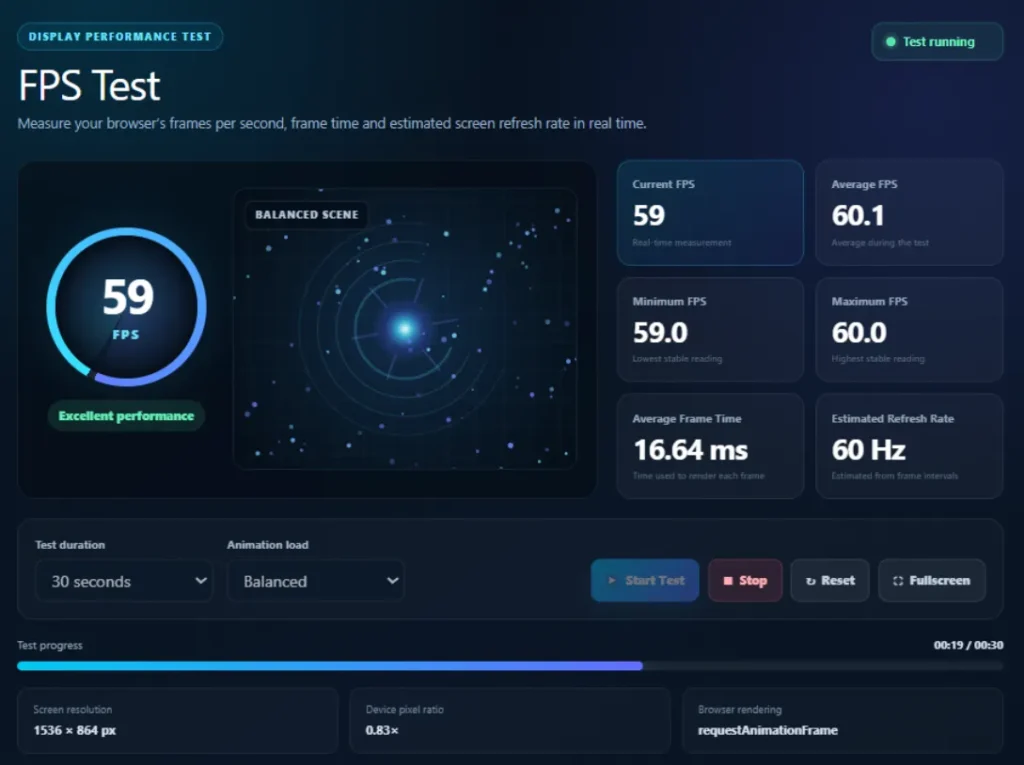
After extensive evaluation of every major FPS testing solution available in 2025, one browser-based tool stands clearly above the competition in terms of accessibility, accuracy, and ease of use.
🥇 DiaryOK FPS Test — The #1 FPS Testing Tool
🌐 Browser-based
💰 100% Free
⚡ Instant Results
📱 Works on Any Device
Diary OK FPS Test is the most accessible and reliable way to measure your computer’s rendering capability directly from a browser. Unlike heavyweight desktop apps, this tool runs entirely in your browser using cutting-edge JavaScript rendering techniques, delivering an accurate real-time FPS reading without a single installation step.
No download or installation
Real-time FPS monitoring
Works on Windows, Mac & Linux
Zero performance overhead
Instant, accurate readings
Mobile & desktop compatible
💡 Pro Tip: DiaryOK FPS Test is ideal for quickly diagnosing whether your browser or system is capable of sustaining smooth frame rates. It’s particularly useful before and after driver updates, hardware changes, or browser settings adjustments to verify real-world rendering performance instantly.
How to Test FPS on Computer: Step-by-Step
Follow these steps to accurately measure your computer’s FPS performance using DiaryOK’s free FPS testing tool.
- 1 Open Your BrowserLaunch any modern browser — Google Chrome, Firefox, Edge, or Safari. For best results, use the most up-to-date version. Close unnecessary tabs to reduce background CPU usage.
- 2 Navigate to the FPS Test Tools diaryok.com/tools/fps-test/. The page loads instantly — no login, no sign-up required.
- 3 Start the FPS TestClick the Start Test button. The tool will begin rendering frames and calculating your FPS in real time using your browser’s rendering engine.
- 4 Wait for a Stable ReadingAllow the test to run for at least 10–15 seconds to obtain a stable, averaged FPS value. Early readings may fluctuate as the browser warms up its rendering pipeline.
- 5 Note Your ResultsRecord the average FPS, minimum FPS, and any notable drops. Compare your results against the benchmarks in the next section to understand where your system stands.
- 6 Test Under Different ConditionsFor comprehensive diagnostics, run the test with other applications open, after a driver update, or after changing graphics settings to compare results side by side.
FPS Benchmarks: What Are Good Numbers?
Understanding your test results requires context. Here is a definitive FPS benchmark reference table covering every use case from basic desktop computing to professional esports.
| FPS Range | Performance Level | Typical Use Case | User Experience |
|---|---|---|---|
| Below 20 FPS | Critical | Hardware failure / extreme bottleneck | Unplayable — severe stuttering and freezing |
| 20–29 FPS | Poor | Integrated graphics / old hardware | Noticeable lag, choppy motion, frustrating |
| 30–59 FPS | Acceptable | Console-level gaming, casual play | Playable but noticeably less smooth than 60+ |
| 60–89 FPS | Good | Standard PC gaming, most AAA titles | Smooth, comfortable for most players |
| 90–143 FPS | Very Good | High-refresh gaming (90Hz/120Hz monitors) | Highly fluid, excellent responsiveness |
| 144–239 FPS | Excellent | Competitive FPS, 144Hz monitors | Ultra-smooth, competitive edge, reduced input lag |
| 240+ FPS | Pro Level | Esports, 240Hz+ monitors | Maximum responsiveness, professional standard |
📌 Key Insight: The “right” FPS depends entirely on your monitor’s refresh rate. A 60Hz monitor cannot display more than 60 FPS regardless of how powerful your GPU is. If you have a 144Hz monitor, targeting 144+ FPS is the sweet spot for extracting its full benefit.
Common Causes of Low FPS on a Computer
If your FPS test returns disappointing numbers, one or more of these factors is likely responsible. Identifying the root cause is essential before attempting any fix.
🖥️Outdated or Underpowered GPU
The graphics card is the primary bottleneck for rendering performance. An aging GPU struggles with modern titles at higher resolutions and settings.
⚙️
CPU Bottleneck
When the processor can’t keep up with the GPU’s demands — particularly in open-world games or titles with complex AI — FPS drops occur even with a powerful graphics card.
🧠Insufficient RAM
Less than 16GB of RAM in 2025 can cause stuttering and FPS drops in modern games that actively stream large amounts of data into memory.
🌡️Thermal Throttling
When a GPU or CPU overheats, it automatically reduces its clock speed to protect itself — directly cutting your FPS. Dust buildup and poor airflow are common culprits.
🔄Outdated Drivers
GPU drivers are regularly optimized for specific games. Running outdated drivers means missing performance gains and bug fixes that can significantly affect FPS.
📦Background Processes
Applications running in the background — antivirus scans, system updates, browser tabs — consume CPU and RAM that could otherwise be dedicated to rendering frames.
💽Slow Storage (HDD vs SSD)
While storage doesn’t directly affect FPS, slow hard drives cause stuttering during texture streaming as game data can’t be loaded into RAM fast enough.
⚡Power Plan Settings
Windows “Power Saver” mode deliberately limits CPU performance. Switching to “High Performance” or “Ultimate Performance” can yield immediate FPS gains.
FPS Testing Tools Comparison (2026)
There are several ways to test FPS on a computer. Here is a comprehensive comparison of every major option to help you choose the right tool for your needs — and understand why DiaryOK FPS Test leads the field.
| Tool | Type | No Install | Free | Real-Time | Cross-Platform | Ease of Use |
|---|---|---|---|---|---|---|
| 🥇 DiaryOK FPS Test | Browser Tool | ✓ | ✓ | ✓ | ✓ | ★★★★★ |
| MSI Afterburner + RTSS | Desktop App | ✗ | ✓ | ✓ | Windows only | ★★★☆☆ |
| FRAPS | Desktop App | ✗ | Paid | ✓ | Windows only | ★★☆☆☆ |
| Steam FPS Counter | Built-in Overlay | Requires Steam | ✓ | ✓ | Steam games only | ★★★☆☆ |
| NVIDIA GeForce Overlay | GPU Software | ✗ | ✓ | ✓ | NVIDIA GPUs only | ★★★☆☆ |
| AMD Radeon Overlay | GPU Software | ✗ | ✓ | ✓ | AMD GPUs only | ★★★☆☆ |
| CapFrameX | Desktop App | ✗ | ✓ | ✓ | Windows only | ★★☆☆☆ |
| HWiNFO64 | Desktop App | ✗ | ✓ | ✓ | Windows only | ★★☆☆☆ |
Why DiaryOK FPS Test Wins
Every competing solution requires either a software installation, a specific GPU vendor, a gaming platform account, or a paid license. DiaryOK FPS Test is the only tool that works instantly in any browser on any operating system for free — making it unambiguously the most accessible and frictionless FPS measurement tool available today.
For users who need in-game overlays or deep hardware telemetry alongside FPS (CPU temp, GPU usage, VRAM, etc.), desktop tools like MSI Afterburner remain a solid complement. However, for a fast, clean, reliable FPS reading with zero setup, DiaryOK is the clear first choice.
How to Improve Your FPS After Testing
Once you’ve measured your FPS with DiaryOK’s tool and identified it as lower than desired, these proven optimization strategies can help you gain meaningful performance improvements without purchasing new hardware.
🔧 Software & Settings Optimizations
- 🎮Lower in-game graphics settings: Reducing shadow quality, anti-aliasing, texture resolution, and draw distance typically yields the largest FPS gains with minimal visual impact.
- 📺Reduce resolution or enable dynamic resolution scaling: Rendering at a lower internal resolution and upscaling with DLSS (NVIDIA), FSR (AMD), or XeSS (Intel) can double or triple your FPS.
- 🔄Update GPU drivers: NVIDIA, AMD, and Intel release optimized drivers for major game releases. Open GeForce Experience, Adrenalin, or Intel Arc Control and check for updates.
- ⚡Switch to High Performance power plan: Open Windows Settings → Power & Sleep → Additional Power Settings → select “High Performance” or “Ultimate Performance.”
- 🚫Close background applications: Terminate unnecessary processes via Task Manager before gaming. Browser tabs, Discord video, and active antivirus scans all compete for CPU resources.
- 🌀Enable Game Mode in Windows: Windows Game Mode prioritizes CPU and GPU resources for your game and suppresses background update installations during play.
- 🖥️Enable V-Sync or G-Sync/FreeSync: These technologies synchronize frame output with your monitor’s refresh rate, eliminating screen tearing and reducing judder — though V-Sync can cap FPS to your monitor’s refresh rate.
🏗️ Hardware Upgrades for Maximum FPS
- 🖼️Upgrade your GPU: The single most impactful upgrade for FPS in GPU-limited workloads. A newer generation GPU can provide 2–4x the performance.
- 🧠Add more RAM or upgrade to dual-channel: If running 8GB or single-channel RAM, upgrading to 16–32GB dual-channel DDR5 can eliminate memory bottlenecks in CPU-bound scenarios.
- 💽Move games to an NVMe SSD: Eliminates texture-streaming stutters caused by slow HDD read speeds, resulting in smoother FPS during open-world traversal.
- 🌡️Improve cooling (repaste CPU/GPU): Replacing dried thermal paste on your CPU and GPU can reduce temperatures by 10–20°C, stopping thermal throttling and recovering lost FPS.
Frequently Asked Questions
How do I test my FPS on PC without downloading anything? ▼
The simplest method is to visit Diary OK FPS Test directly in your browser. It requires no download, no installation, and no account creation. The tool uses your browser’s rendering engine to measure frames per second in real time. What is a good FPS for gaming in 2025? ▼
For casual gaming, 60 FPS is the widely accepted baseline for smooth gameplay. Competitive players should target 144 FPS or higher. Professional esports athletes typically require 240+ FPS on high-refresh-rate monitors to maximize responsiveness and reaction times. Why does my FPS drop in games even with a powerful PC? ▼
FPS drops on a powerful system are often caused by CPU bottlenecks (the game relies heavily on single-core performance), thermal throttling (overheating components reducing their clock speed), outdated drivers missing game-specific optimizations, or a background process consuming significant CPU/RAM resources. Does more RAM increase FPS? ▼
RAM capacity affects FPS when you have too little (under 16GB for modern games). Going from 8GB to 16GB can yield significant FPS gains in memory-hungry games. Beyond 16–32GB, additional RAM provides diminishing returns for gaming. RAM speed (MHz) and dual-channel configuration also have a modest positive impact on CPU-bound scenarios. Is the DiaryOK FPS Test accurate? ▼
Yes. DiaryOK FPS Test measures the actual rendering frame rate your browser and system produce in real time using frame timing APIs. It reflects your system’s genuine rendering capability and is consistent across repeated measurements, making it a reliable diagnostic tool. Can I test FPS on a laptop? ▼
Absolutely. DiaryOK FPS Test works on any device with a browser, including Windows and Mac laptops, Chromebooks, and even mobile phones. For laptops specifically, note that performance may differ between battery and plugged-in modes — testing both can reveal how power management affects your system’s rendering performance. What is the difference between FPS and refresh rate (Hz)? ▼
FPS is how many frames your GPU renders per second. Refresh rate (Hz) is how many frames your monitor can physically display per second. For smooth, tear-free gameplay, you ideally want your GPU’s FPS to match or exceed your monitor’s refresh rate. A 144Hz monitor displaying only 30 FPS will look just as choppy as on a 60Hz monitor.
Ready to Test Your FPS?
Use the #1 browser-based FPS testing tool — instant, free, and no download required. Get your reading in under 30 seconds. 🚀 Test My FPS Now at DiaryOK →